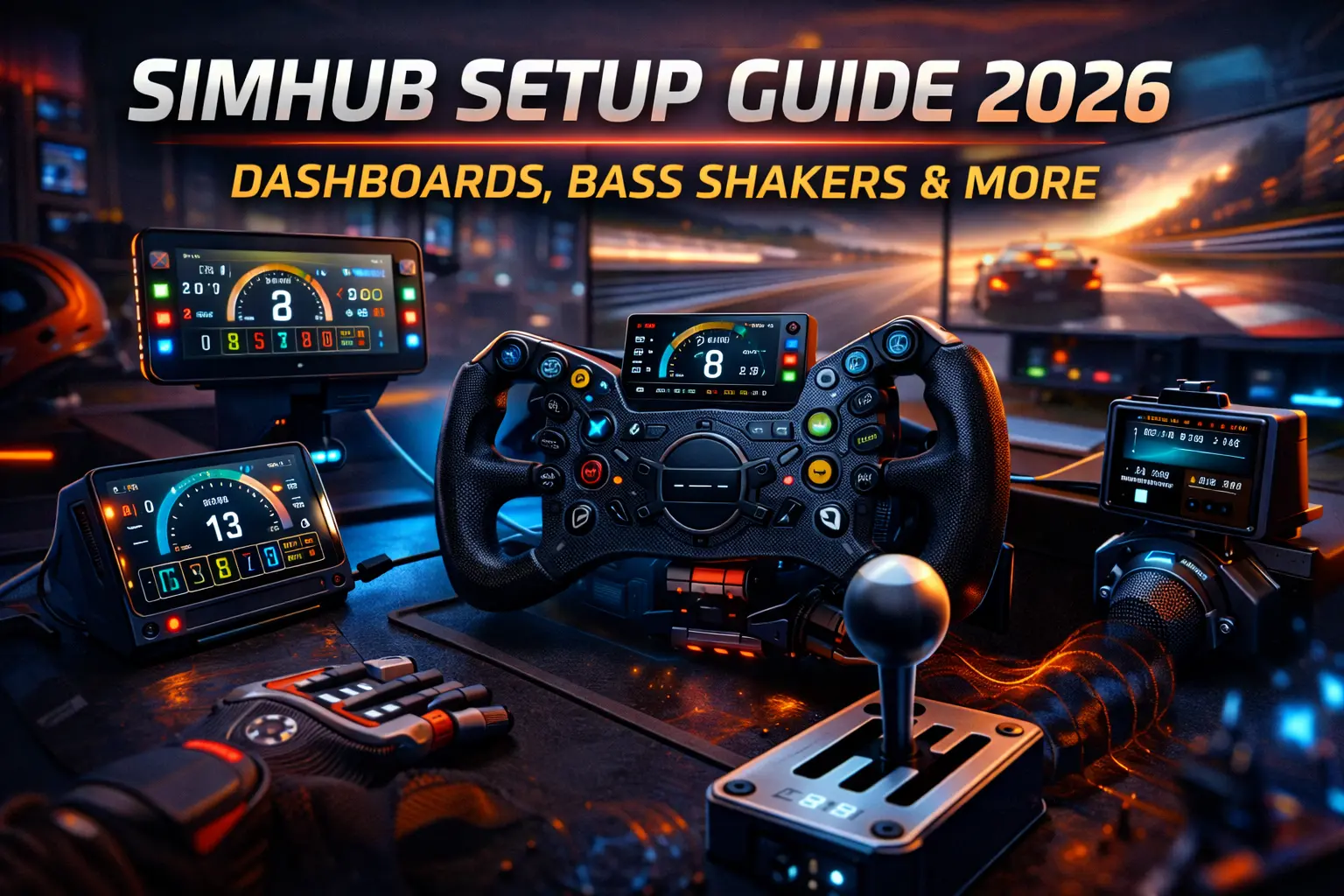
Introduction: Unlocking SimHub’s Potential
SimHub is the Swiss Army knife of sim racing software—a free application that connects your racing sims to external hardware, displays, and feedback devices. It powers dashboard displays on phones and tablets, controls bass shakers for tactile feedback, drives Arduino-based LED flag indicators, and integrates with Stream Deck for button box functionality.
The challenge is that SimHub’s flexibility creates complexity. The interface presents dozens of options across multiple tabs. First-time users often feel overwhelmed, unsure which settings matter and which to ignore. This guide provides the complete SimHub setup process, from initial installation through advanced bass shaker tuning. I’ll walk through each feature category with specific settings recommendations based on extensive testing.
The guide covers four primary SimHub uses: dashboard displays transforming your phone or tablet into live telemetry screen; bass shaker control configuring tactile transducers to provide road feel and impact feedback; Arduino projects connecting DIY hardware like LED flags and rev indicators; and Stream Deck integration using SimHub to create dynamic button configurations.
Each section works independently—skip to the feature you need, or work through sequentially for complete setup understanding. This guide covers SimHub version 9.x. Interface may vary slightly in future versions.
What SimHub Does (And Why It Matters)
SimHub sits between your racing sim and external hardware. It reads telemetry data from the game—speed, RPM, gear, tire temperatures, lap times, fuel levels, everything the sim calculates—and translates that data into outputs for connected devices.
The Telemetry Connection:
Racing sims generate extensive telemetry data describing every aspect of car behavior. iRacing, ACC, F1 25, and most major sims expose this data through APIs that SimHub reads. This telemetry updates many times per second, providing real-time information about your virtual car.
Without SimHub, this telemetry stays trapped inside the game. With SimHub, the data flows to external devices. Your phone becomes a dashboard showing real-time speed, gear position, and tire wear. Your bass shakers pulse with engine RPM and vibrate with road texture. Your LED strip flashes blue for optimal shift point.
Why External Feedback Matters:
Sim racing on a monitor provides visual information only. You see the tachometer—you don’t feel the engine vibration. You see the kerb approaching—you don’t feel the impact through your seat. This visual-only experience lacks the multi-sensory feedback real driving provides.
SimHub enables multi-sensory racing. Bass shakers add the tactile dimension—feeling road texture, engine vibration, and impact forces. Dashboard displays move critical information off the main screen to dedicated displays, reducing visual clutter. The combined effect significantly increases immersion.
The Free Factor:
SimHub is donation-ware—fully functional for free, with optional donation to support development. The free version includes every feature covered in this guide. This pricing model means every sim racer can access SimHub’s capabilities. The barrier is setup complexity, not cost.
Sim Compatibility:
SimHub supports virtually every major racing sim: iRacing, Assetto Corsa, ACC, F1 25, rFactor 2, Automobilista 2, Project Cars 2, Dirt Rally 2.0, WRC, BeamNG, Euro Truck Simulator 2, and many others. Each sim requires specific telemetry plugin configuration, which SimHub handles automatically for most titles.
Installation and Initial Setup
SimHub installation is straightforward, but initial configuration requires attention to several settings that affect all features.
Download and Installation:
Download SimHub from the official website (simhubdash.com). Run the installer, accepting default installation location unless you have specific preference. The installer is approximately 150MB; installation requires about 500MB disk space.
During installation, SimHub asks about optional components. I recommend installing all components initially—you can disable unused features later. The full installation includes dashboard server, bass shaker modules, Arduino support, and Stream Deck integration.
First Launch Configuration:
On first launch, SimHub presents a setup wizard. Work through each step: game detection scans for installed racing sims and enables appropriate telemetry plugins. Verify your sims appear in the detected list. If a sim is missing, you can manually enable it later in Settings → Games.
For telemetry plugins, most sims work immediately. iRacing and ACC work out of the box. Some sims (rFactor 2, AMS2) may require manual plugin installation—SimHub provides instructions if needed.
Hardware detection scans for connected devices—Arduino boards, Stream Deck, audio devices for bass shakers. Ensure your hardware is connected during this step for automatic detection.
Essential Settings Configuration:
After the wizard, configure these settings in the main Settings menu. Start with Windows under General → Start with Windows to have SimHub running whenever you race. Enable Minimize to system tray under General → Minimize to system tray to keep SimHub running without taskbar clutter.
In Settings → Games, enable Automatically connect to running games for SimHub to automatically connect when you launch a supported game. I recommend disabling telemetry recording under Settings → General unless you specifically need replay analysis—recording consumes disk space.
Verifying Telemetry Connection:
Launch a supported racing sim and enter a car on track. In SimHub, check the status bar at the bottom—it should show the game name and “Connected” status. The telemetry data panels should populate with live data: speed, RPM, gear, etc.
If connection fails: verify the game is listed in Settings → Games with checkbox enabled, check if the game requires manual plugin installation, try restarting both SimHub and the game, or run SimHub as administrator if permission issues occur.
Dashboard Setup: Phone and Tablet Displays
SimHub’s dashboard feature transforms any phone, tablet, or secondary monitor into a live telemetry display. The setup involves configuring the SimHub server and installing the client app on your display device.
Server Configuration:
In SimHub, navigate to Dash Studio using the left sidebar. Click the gear icon to access Dashboard Server settings. Configure: Enable dashboard server (must be checked for any dashboard functionality), Server port (default 8888 works for most users), and Allow connections from any IP (enable this if using phone/tablet on same WiFi network).
Note the server address displayed (typically http://[your-PC-IP]:8888)—you’ll need this for client connection.
Installing SimHub Dashboard App:
For phone/tablet displays, install the SimHub Dashboard app. On Android, download from Google Play Store (search “SimHub Dashboard”). On iOS, download from Apple App Store (search “SimHub Dashboard”). Both apps are free with optional in-app donation.
Connecting Dashboard to SimHub:
Launch the app on your phone/tablet. The app searches for SimHub servers on your local network. If auto-detection works, your PC appears in the server list—tap to connect.
If auto-detection fails: ensure phone/tablet is on same WiFi network as PC, manually enter server address http://[PC-IP-address]:8888, check Windows Firewall isn’t blocking SimHub (add exception if needed), and verify “Allow connections from any IP” is enabled in SimHub.
Selecting and Customizing Dashboards:
Once connected, the app displays available dashboard layouts. SimHub includes numerous pre-made dashboards: generic dashboards work with any sim showing speed, gear, RPM, and basic telemetry; sim-specific dashboards show data unique to particular games (iRacing fuel calculations, ACC tire pressures, etc.); car-specific dashboards replicate real car displays (GT3 dashboards, formula displays, etc.).
Browse the included dashboards and select one matching your racing. The dashboard immediately shows live data when you’re on track.
Mounting Your Display:
Physical mounting affects usability significantly. Common approaches: phone mount on cockpit positioned at dashboard height, angled toward driver with many cockpits having accessory mounting points; tablet below monitor for larger display; or secondary monitor dedicated to telemetry if desk space allows.
Recommended Dashboard Setups by Sim:
For iRacing, use an iRacing-specific dashboard showing fuel remaining (laps), tire wear, and relative timing. For ACC, use ACC-specific dashboard with tire pressure and temperature displays—essential for ACC’s tire model. For F1 25, use F1-specific dashboard showing ERS status, tire wear, and DRS availability.
The dashboard transforms racing experience by moving telemetry off main screen to dedicated display, reducing visual clutter while keeping critical information accessible.
Bass Shaker Configuration: The Complete Guide
Bass shaker configuration is SimHub’s most impactful feature—and its most complex. This section provides complete setup instructions for tactile transducers.
Prerequisites:
Before configuring SimHub, ensure your bass shakers are properly installed and connected: bass shakers physically mounted to rig (seat, pedal tray, or chassis), amplifier connected and powered, amplifier audio input connected to PC audio output (dedicated sound card recommended), and Windows recognizes the audio output device.
Initial ShakeIt Configuration:
In SimHub, navigate to ShakeIt Bass Shakers using the left sidebar. First, configure your audio output: click ‘Output device’ dropdown, select the audio device connected to your bass shaker amplifier. If using multiple shakers with separate channels, select device with multiple outputs.
Understanding ShakeIt Effects:
SimHub provides numerous tactile effects organized in the left panel. Road effects include road vibrations (simulates road surface texture), curbs (impact feedback when hitting kerbs), and rumble strips. Engine effects include RPM (engine vibration linked to engine speed), gear shift (impact on gear changes), and engine load (vibration intensity based on throttle). Collision/impact effects include impacts (collision feedback), wheels lock (vibration during brake lockup), and wheels slip (feedback during wheelspin). Suspension effects include suspension (chassis movement feedback) and ground bumps (bump absorption feel).
Each effect has individual configuration—you’ll tune these based on your hardware and preferences.
Basic Setup Process:
I recommend starting with minimal effects and adding complexity gradually. Begin with three primary effects: RPM (engine vibration), Road Vibrations (surface texture), and Curbs (kerb impacts).
For each effect: enable the effect using the checkbox, set initial intensity to 50%, configure frequency range (explained below), and test in-game and adjust.
Frequency Configuration:
Bass shakers reproduce frequencies differently based on their specifications. Most bass shakers work optimally in 20-80Hz range. SimHub lets you configure frequency output per effect.
General frequency guidelines: engine RPM works best at 25-45Hz for that engine rumble feel, road texture at 40-80Hz for surface detail, and impacts at 30-60Hz for punchy impact sensation. Configure each effect’s frequency using the frequency slider or by setting Min/Max Hz values. Start with recommended ranges and adjust based on how your specific hardware responds.
Intensity Balancing:
The challenge with bass shakers is balancing multiple effects so one doesn’t overwhelm others. The process: set all effects to 50% intensity initially, test in-game and identify which effects feel too strong or weak, reduce intensity on overpowering effects (often RPM dominates), increase intensity on subtle effects (often road texture is too quiet), and repeat until balance feels natural.
My balanced configuration after extensive tuning: RPM at 35% intensity, Road Vibrations at 70% intensity, Curbs at 85% intensity, Wheel Lock at 60% intensity, and Impacts at 50% intensity. Your optimal settings depend on bass shaker power, amplifier gain, and personal preference. Use these values as starting point, not gospel.
Per-Sim Adjustment:
Different sims output telemetry differently, requiring per-sim adjustments. ACC’s road feel telemetry differs from iRacing’s, which differs from F1 25’s. SimHub supports per-game profiles: create a profile for each sim you race, configure ShakeIt settings optimized for that sim, and SimHub automatically loads appropriate profile when each game launches. This ensures optimal tactile feedback regardless of which sim you’re racing.
Troubleshooting Bass Shakers:
No output at all: verify audio device selection in ShakeIt, check amplifier is powered and volume is up, test audio device with regular audio (music) to confirm connection, and ensure at least one effect is enabled with >0% intensity.
Weak or inconsistent output: increase master gain in ShakeIt, increase individual effect intensities, check amplifier gain settings, and verify telemetry connection is active (data must be flowing).
Output too harsh/buzzy: reduce high frequencies (lower Max Hz settings), reduce effect intensities, add low-pass filtering if available in your audio chain.
Arduino Projects: LED Flags and Displays
SimHub supports Arduino-based projects for LED displays, flag indicators, and custom hardware. This section covers basic Arduino integration—advanced projects require electronics knowledge beyond this guide’s scope.
What Arduino Projects Enable:
Arduino boards connected to SimHub can control LED strips for shift indicators (rev lights), individual LEDs for flag status (blue flag, yellow flag), seven-segment displays for gear indicator, LCD screens for custom telemetry display, and stepper motors for physical gauges. The possibilities are extensive for users comfortable with basic electronics.
Basic Setup: Arduino Connection
SimHub communicates with Arduino boards via USB serial connection. Supported boards include Arduino Uno, Nano, Mega, and various ESP32/ESP8266 boards.
Initial configuration: connect Arduino to PC via USB, navigate to Arduino section in SimHub, click ‘Add new device’, select your Arduino from the COM port dropdown. SimHub uploads its firmware to the Arduino automatically.
LED Shift Indicator Example:
The most common Arduino project is an LED shift indicator strip showing RPM and optimal shift point. Hardware needed: Arduino Nano (~$5-10), WS2812B LED strip (8-16 LEDs, ~$5), USB cable, and basic wiring (5V, Ground, Data).
SimHub configuration: select your device in Arduino settings, navigate to ‘LEDs’ tab, configure LED count matching your strip, assign LED function (‘RPM Gauge’ or ‘Shift Indicator’), configure colors (green→yellow→red progression typical), and set shift point flash behavior.
The LED strip then displays live RPM data, lighting progressively as RPM increases and flashing at optimal shift point.
Flag Indicator Project:
A flag indicator uses individual LEDs to show racing flags: blue LED for blue flag (faster car approaching), yellow LED for yellow flag (caution), green LED for green flag (clear), white LED for white flag (slow car ahead).
Configuration maps each flag state from telemetry to corresponding LED output. Different sims provide different flag data—test with your primary sim to ensure flags trigger correctly.
Complexity Consideration:
Arduino projects require basic electronics knowledge: understanding voltage, wiring connections, and potentially soldering. SimHub handles the software side, but hardware construction is your responsibility.
For users uncomfortable with electronics, pre-built solutions exist: SIM Racing Studio offers plug-and-play LED devices, various Etsy sellers offer assembled SimHub-compatible hardware, and the SimHub Discord community shares project guides and offers help.
Stream Deck Integration
SimHub integrates with Elgato Stream Deck, enabling dynamic button displays that change based on game state and show live telemetry data.
Installation:
SimHub includes Stream Deck plugin automatically. To configure: ensure Stream Deck software is installed, find SimHub actions in the action list, and drag SimHub actions onto buttons to configure.
Available SimHub Actions:
Property Display shows live telemetry value on button (speed, gear, fuel, etc.). Property Toggle toggles game setting and shows current state. Command Button sends keyboard command when pressed (for game controls). Dashboard Button displays mini-dashboard on button face.
Configuration Example: Fuel Display
To create a button showing remaining fuel: drag ‘Property Display’ action to button position, in action settings select your sim from dropdown, choose ‘Fuel Remaining’ property, configure display format (decimal places, units), and optionally set warning color when fuel is low. The button now shows live fuel level when racing, updating in real-time.
Automatic Profile Switching:
SimHub can automatically switch Stream Deck profiles when games launch. Create separate Stream Deck profiles for each sim, in SimHub Settings → Stream Deck configure profile associations, and SimHub switches profiles automatically when you launch each game. This enables sim-specific button configurations without manual switching.
Troubleshooting Common Issues
SimHub’s complexity means occasional issues. Here are solutions to the most common problems.
No Telemetry Data / Not Connecting:
Symptoms: SimHub shows no data, or status shows ‘Not connected’ when game is running. Solutions: verify game is enabled in Settings → Games, check if some games require manual plugin installation (check SimHub’s game-specific instructions), run SimHub as administrator, restart both SimHub and the game, and check Windows Firewall isn’t blocking SimHub.
Bass Shakers Not Working:
Symptoms: Shakers don’t respond despite correct audio routing. Solutions: verify correct audio device selected in ShakeIt, test audio device with regular audio to confirm connection, ensure at least one effect is enabled with >0% intensity, check ‘Master’ output isn’t muted or at 0%, and verify telemetry is flowing (check SimHub data panel shows live values).
Dashboard App Won’t Connect:
Symptoms: Phone/tablet app can’t find SimHub server. Solutions: ensure phone/tablet is on same WiFi network as PC, enable ‘Allow connections from any IP’ in Dashboard Server settings, add Windows Firewall exception for SimHub, try manual IP entry instead of auto-detection, and disable VPN if active on either device.
High CPU Usage:
Symptoms: SimHub consuming excessive CPU resources. Solutions: disable telemetry recording if enabled, reduce dashboard update frequency in settings, disable unused features/modules, and close Dash Studio editor when not actively editing.
Effects Feel Wrong / Unrealistic:
Symptoms: Bass shaker output doesn’t match expectations. Solutions: check frequency configuration—wrong frequency range creates wrong sensation, adjust intensity balance between effects, try different effect combinations—sometimes less is more, create per-sim profiles—different sims need different settings, and allow time for adaptation—unfamiliar tactile feedback takes adjustment period.
FAQ: SimHub Questions
Is SimHub free?
Yes, SimHub is fully functional for free. The developer accepts donations from users who find value, but no features are restricted in the free version. All capabilities covered in this guide work without payment.
Does SimHub work with all racing sims?
SimHub supports most major racing sims: iRacing, ACC, F1 25, Assetto Corsa, rFactor 2, AMS2, Dirt Rally, WRC, BeamNG, and many others. Some sims require manual plugin installation. Check SimHub documentation for your specific sim.
Can I run SimHub and other telemetry apps simultaneously?
Usually yes. SimHub coexists with CrewChief, Trading Paints, and most other sim racing tools. Some telemetry apps may conflict—if issues occur, try different launch orders or check for known conflicts in SimHub forums.
Do I need a second PC for SimHub?
No. SimHub runs on your racing PC alongside the game. Modern PCs handle SimHub’s resource requirements without impacting game performance. For dashboard displays, you need separate device (phone/tablet), but not separate PC.
What’s the minimum hardware for bass shakers with SimHub?
Bass shakers require: amplifier to power the shakers, audio output to connect (ideally dedicated sound card but motherboard audio works), and the shakers themselves mounted to your rig. SimHub itself has minimal requirements—any PC running modern racing sims handles SimHub easily.
Note: This guide contains affiliate links. If you purchase through our links, we may earn a commission at no extra cost to you.
For bass shaker hardware selection before software setup, see our bass shaker buying guide covering Buttkicker versus alternatives and mounting considerations.
Considering Stream Deck alternatives? Our button box guide covers whether dedicated button box or Stream Deck better suits racing needs.
Building complete immersive setup? Our budget rig build guide shows optimal budget allocation across SimHub hardware.
Looking for single display solution? Our single monitor vs triple monitors vs VR guide helps evaluate dashboard display strategies.